# Integration Manual: Biometric MFA

***

#### Prerequisites

* **Administrator Credentials:** The client software installation requires local administrator privileges on the machine.
* **Configuration Information:** Before starting, obtain from the Facesign technical team the **environment variable value** and your **Client ID (ClientID)**. These data are unique to each organization.

***

#### Configuration Procedure

The integration is carried out in three main steps: setting the environment variable, installing the MFA client and authentication.

***

### Step 1: Setting the Environment Variable

You need to create an environment variable in the system so that the MFA client can communicate with the Facesign platform.

1. Access the **Control Panel** in Windows.

<figure><img src="https://1944264865-files.gitbook.io/~/files/v0/b/gitbook-x-prod.appspot.com/o/spaces%2FZHOws1GppZYJspgX4wu1%2Fuploads%2FLLtdEOuwQZLGFAZFkf4e%2Fimage.png?alt=media&#x26;token=abf5b7fb-2f1d-425f-b9fd-f72ee68d755e" alt=""><figcaption></figcaption></figure>

2. Navigate to **System** and then click **Advanced system settings.**
3. On the **Advanced**tab, click the **Environment Variables**....

<figure><img src="https://1944264865-files.gitbook.io/~/files/v0/b/gitbook-x-prod.appspot.com/o/spaces%2FZHOws1GppZYJspgX4wu1%2Fuploads%2F0QEvpnHrXTfnNhfPDWhO%2Fimage.png?alt=media&#x26;token=586d340b-dee4-42b2-85f7-bc4809d7ea3c" alt=""><figcaption></figcaption></figure>

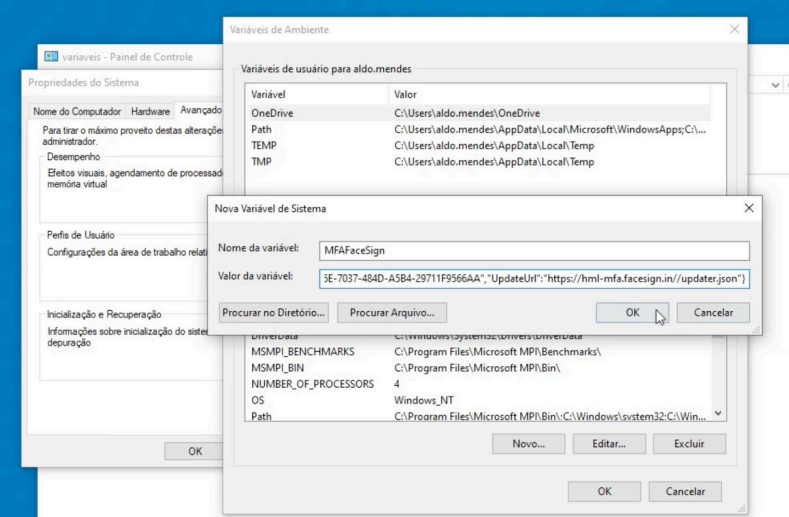
4. In the **System variables**section, click **New**... to add a new variable.
5. Fill in the fields as follows:

* **Variable name:** `MFAFaceSign`
* **Variable value:** Enter here the full value (usually in JSON format) provided by the Facesign technical team.

6. Click **OK** in all windows to confirm and save the changes.

<figure><img src="https://1944264865-files.gitbook.io/~/files/v0/b/gitbook-x-prod.appspot.com/o/spaces%2FZHOws1GppZYJspgX4wu1%2Fuploads%2Fdkw6D8RacIOLKqmKKGhi%2Fimage.png?alt=media&#x26;token=0f4cc1ed-f725-4e64-84a0-08e767a74817" alt=""><figcaption></figcaption></figure>

#### Environment Variable Parameters

The value of the variable `MFAFaceSign` is a JSON object that may contain several parameters to customize the behavior of the MFA client. The table below describes the main available parameters.

<table><thead><tr><th width="262">Parameter</th><th width="386.5999755859375">Description</th></tr></thead><tbody><tr><td><code>MFALogonWindows</code></td><td>Require biometrics when powering on the machine</td></tr><tr><td><code>MFAUnlockWindows</code></td><td>Require biometrics on unlock</td></tr><tr><td><code>BlockKeyBoardShortCuts</code></td><td>Blocks keyboard shortcut keys</td></tr><tr><td><code>BreakGlass</code></td><td>Disables all functions (default "false")</td></tr><tr><td><code>ClientURL</code></td><td>Client portal URL (facesign app)</td></tr><tr><td><code>MonitoringURL</code></td><td>Monitoring link (internal use)</td></tr><tr><td><code>ClientID</code></td><td>Unique client ID (facesign app)</td></tr><tr><td><code>UpdateURL</code></td><td>Version update URL</td></tr></tbody></table>

***

### Step 2: Installation of the MFA Client

With the environment variable configured, the next step is to install the client software.

1. Run the Biometric MFA installer file (`.msi`) provided by Facesign.

<figure><img src="https://1944264865-files.gitbook.io/~/files/v0/b/gitbook-x-prod.appspot.com/o/spaces%2FZHOws1GppZYJspgX4wu1%2Fuploads%2FQ5EtqrOH6cgkUl9jBByw%2Fimage.png?alt=media&#x26;token=e223b7c8-92e3-406d-9e42-8b6766f83ed3" alt=""><figcaption></figcaption></figure>

2. On the welcome screen, proceed to the next step.
3. When prompted, enter your **Client ID (ClientID)** in the corresponding field. This ID is the same used in the environment variable.

<figure><img src="https://1944264865-files.gitbook.io/~/files/v0/b/gitbook-x-prod.appspot.com/o/spaces%2FZHOws1GppZYJspgX4wu1%2Fuploads%2FC3HpfQ9ITWsyUH8btPkO%2Fimage.png?alt=media&#x26;token=376ffe6c-ae97-4563-8364-e9de212b4822" alt=""><figcaption></figcaption></figure>

4. Continue with the installation, advancing through all steps until completion. The process may take a few minutes to start the necessary services.

<figure><img src="https://1944264865-files.gitbook.io/~/files/v0/b/gitbook-x-prod.appspot.com/o/spaces%2FZHOws1GppZYJspgX4wu1%2Fuploads%2FS6A4dNtc3W6W0qyxK8Zf%2Fimage.png?alt=media&#x26;token=bd409ad7-69fe-4d7f-8f5e-b0d5d3ab662b" alt=""><figcaption></figcaption></figure>

5. At the end, click **Finish** to close the installer.

<figure><img src="https://1944264865-files.gitbook.io/~/files/v0/b/gitbook-x-prod.appspot.com/o/spaces%2FZHOws1GppZYJspgX4wu1%2Fuploads%2F1bGmQQzec2nBSbqgZq22%2Fimage.png?alt=media&#x26;token=2d644901-9ae1-41ee-b34a-bcd2a813a28d" alt=""><figcaption></figcaption></figure>

***

### Step 3: Authentication and Access

After successful installation, biometric authentication will be requested as configured.

1. On the Windows logon or unlock screen, the Facesign prompt will be displayed.
2. Perform the 3D biometric verification according to the on-screen instructions.
3. After successful validation, access to the system will be granted.

#### Congratulations!&#xD; You now&#xD; have a&#xD; new level of&#xD; security and&#xD; innovation!

***

### Support and Contact

With Facesign's Biometric MFA solution, your organization adds a robust layer of security and innovation to accesses. If you have any questions or need technical support, contact our team via email: <contato@facesign.in>.
